> For the complete documentation index, see [llms.txt](https://guide.strikepack.com/llms.txt). Markdown versions of documentation pages are available by appending `.md` to page URLs; this page is available as [Markdown](https://guide.strikepack.com/horizon/manuals/gears5/weaponsetup.md).
# Weapon Setup | Gear 5
Weapon Setup on the app in Gears 5, STRIKEPACK CENTRAL™ GAMEPACK for STRIKEPACK HORIZON™.
| |
3. Weapon Setup
|
| --------------------------------------------------------------------------------------------------------------------------------------------------------------------------------------------------------------------------------------------------------------- | -------------------------------------------------------- |
***
Weapon Setup Page Contents
[**Overview**](#overview)
[**Weapon Setup**](#weapon-setup)
[**GENERIC: Fire Mode**](#generic-fire-mode)
[**4. Weapon Selector**](#4.-weapon-selector)
## Overview
This section covers "**Weapon Setup**" on the app, featured in our **Gear 5** GAMEPACK for the **STRIKEPACK HORIZON**™ controller adapter & powered by the **STRIKEPACK CENTRAL**™ smartphone app.
{% hint style="danger" %}
Before continuing, please ensure that you have at least completed [**GAMEPACK Setup**](/horizon/manuals/militaryshooter22/gamepacksetup.md) & [**Weapon Swap Mode**](/horizon/manuals/militaryshooter22/weaponswap.md). You MUST be comfortable with managing your ACTIVE Weapon Slot to proceed...
{% endhint %}
When you are first starting out, you should just focus on setting up the first 4 of the 8 available Weapon Slots on the Dashboard, so that you at least have slots setup to use with a full in-game set of weapons.
## Weapon Setup
Gears 5 now uses a D-Pad style layout by default, so your Weapon Slot layout & slot names will probably differ from what is shown. Updated images coming soon.
| Hold your finger on the first slot, until its **Weapon Selector** appears. | |
| ------------------------------------------------------------------------------------------------------------------------------------------------------------------------------------------------------------------------------------------------------------------------------------------------------------------------------------- | ------------------------------------------------------------------------------------------------------------------------------------------------------------------------------------------------------------------------------------------------------------------------ |
You can toggle whether to **Reset Anti**-**Recoil** or **Reset Active Reload on Select**, or leave your current values alone:
| Everything is organized into **Weapon Categories** that you can collapse & expand. The "**GENERIC**" category contains a selection of GENERIC: Fire Modes. | |
| ----------------------------------------------------------------------------------------------------------------------------------------------------------- | ----------------------------------------------------------------------------------------------------------------------------------------------------------------------------------------------------------------------------------------------------------------------------------- |
You have the option of assigning a GENERIC: Fire Mode, such as Regular Fire for use with a Fully Automatic Weapon, or Rapid Fire for use with a Semi-Automatic Weapon, which will be fine for UNSUPPORTED weapons.
* Each GENERIC: Fire Mode will be covered on the next page.
* Later in this manual, you will learn how to apply Anti-Recoil & Bloom Control with Quick Edit.
***
For the absolute best experience :partying\_face:, ignore the GENERIC category & assign a **SUPPORTED** Weapon from the available Weapon Categories instead. If you are unsure as to which in-game weapon you will be using, assign your favourite weapon:
| This will apply an Optimized Active Reload timing for use with the **Auto Reload** M.O.D. | |
| ----------------------------------------------------------------------------------------- | ----------------------------------------------------------------------------------------------------------------------------------------------------------------------------------------------------------------------------------------------------------------------------- |
| Now repeat the process and assign a weapon for the second, third, and forth slot. | |
{% hint style="info" %}
Even after you have assigned a Weapon Slot, for your convenience, you can tap the Weapon Slot to quickly cycle between its assigned Fire Mode or Weapon, Regular Fire, and Rapid Fire.
{% endhint %}
## GENERIC: Fire Mode
See the links below:
### [**GENERIC: Fire Mode**](/horizon/manuals/militaryshooter22/weaponsetup/genericfireadjust.md)
### [**GENERIC Fire Adjust**](/horizon/manuals/militaryshooter22/weaponsetup/genericfireadjust.md)
### [**Quickscope & AHB Delay**](/horizon/manuals/militaryshooter22/gamepackmods/togglemods/auto-focus/quickscopebreathdelay.md)
## 4. Weapon Selector
"[**Weapon Selector**](/horizon/manuals/gears5/weaponselector.md)" will be covered next...
---
# Agent Instructions
This documentation is published with GitBook. GitBook is the documentation platform designed so that both humans and AI agents can read, navigate, and reason over technical content effectively. Learn more at gitbook.com.
## Querying This Documentation
If you need additional information that is not directly available in this page, you can query the documentation dynamically by asking a question.
Perform an HTTP GET request on the current page URL with the `ask` query parameter, and the optional `goal` query parameter:
```
GET https://guide.strikepack.com/horizon/manuals/gears5/weaponsetup.md?ask=&goal=
```
`ask` is the immediate question: it should be specific, self-contained, and written in natural language.
`goal` is optional and describes the broader end goal you are ultimately trying to accomplish on behalf of the user. GitBook uses it to tailor the answer towards what is most useful for that goal.
The response will contain a direct answer to the question and relevant excerpts and sources from the documentation.
Use this mechanism when the answer is not explicitly present in the current page, you need clarification or additional context, or you want to retrieve related documentation sections.

 |
| 
 Hold your finger on the first slot, until its **Weapon Selector** appears. |
  |
| ------------------------------------------------------------------------------------------------------------------------------------------------------------------------------------------------------------------------------------------------------------------------------------------------------------------------------------- | ------------------------------------------------------------------------------------------------------------------------------------------------------------------------------------------------------------------------------------------------------------------------ |
You can toggle whether to **Reset Anti**-**Recoil** or **Reset Active Reload on Select**
|
| ------------------------------------------------------------------------------------------------------------------------------------------------------------------------------------------------------------------------------------------------------------------------------------------------------------------------------------- | ------------------------------------------------------------------------------------------------------------------------------------------------------------------------------------------------------------------------------------------------------------------------ |
You can toggle whether to **Reset Anti**-**Recoil** or **Reset Active Reload on Select** , or leave your current values alone
 :
| Everything is organized into **Weapon Categories** that you can collapse & expand. The "**GENERIC**" category contains a selection of GENERIC: Fire Modes. |
:
| Everything is organized into **Weapon Categories** that you can collapse & expand. The "**GENERIC**" category contains a selection of GENERIC: Fire Modes. | 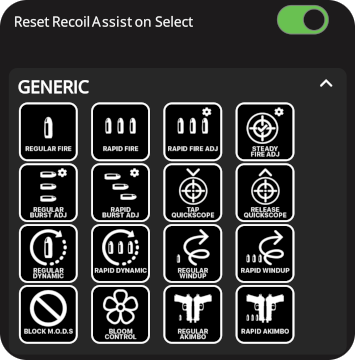 |
| ----------------------------------------------------------------------------------------------------------------------------------------------------------- | ----------------------------------------------------------------------------------------------------------------------------------------------------------------------------------------------------------------------------------------------------------------------------------- |
You have the option of assigning a GENERIC: Fire Mode, such as Regular Fire for use with a Fully Automatic Weapon, or Rapid Fire for use with a Semi-Automatic Weapon, which will be fine for UNSUPPORTED weapons.
* Each GENERIC: Fire Mode will be covered on the next page.
* Later in this manual, you will learn how to apply Anti-Recoil & Bloom Control with Quick Edit.
***
For the absolute best experience :partying\_face:, ignore the GENERIC category & assign a **SUPPORTED** Weapon from the available Weapon Categories instead. If you are unsure as to which in-game weapon you will be using, assign your favourite weapon:
| This will apply an Optimized Active Reload timing for use with the **Auto Reload** M.O.D. |
|
| ----------------------------------------------------------------------------------------------------------------------------------------------------------- | ----------------------------------------------------------------------------------------------------------------------------------------------------------------------------------------------------------------------------------------------------------------------------------- |
You have the option of assigning a GENERIC: Fire Mode, such as Regular Fire for use with a Fully Automatic Weapon, or Rapid Fire for use with a Semi-Automatic Weapon, which will be fine for UNSUPPORTED weapons.
* Each GENERIC: Fire Mode will be covered on the next page.
* Later in this manual, you will learn how to apply Anti-Recoil & Bloom Control with Quick Edit.
***
For the absolute best experience :partying\_face:, ignore the GENERIC category & assign a **SUPPORTED** Weapon from the available Weapon Categories instead. If you are unsure as to which in-game weapon you will be using, assign your favourite weapon:
| This will apply an Optimized Active Reload timing for use with the **Auto Reload** M.O.D. |  |
| ----------------------------------------------------------------------------------------- | ----------------------------------------------------------------------------------------------------------------------------------------------------------------------------------------------------------------------------------------------------------------------------- |
| Now repeat the process and assign a weapon for the second, third, and forth slot. |
|
| ----------------------------------------------------------------------------------------- | ----------------------------------------------------------------------------------------------------------------------------------------------------------------------------------------------------------------------------------------------------------------------------- |
| Now repeat the process and assign a weapon for the second, third, and forth slot. | 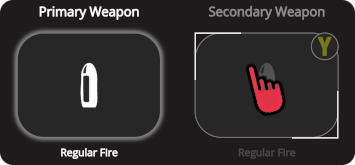 |
{% hint style="info" %}
Even after you have assigned a Weapon Slot, for your convenience, you can
|
{% hint style="info" %}
Even after you have assigned a Weapon Slot, for your convenience, you can  tap the Weapon Slot to quickly cycle between its assigned Fire Mode or Weapon, Regular Fire, and Rapid Fire.
{% endhint %}
tap the Weapon Slot to quickly cycle between its assigned Fire Mode or Weapon, Regular Fire, and Rapid Fire.
{% endhint %}