
 |
| 
 **Settings**, "**Weapon Swap Mode**" covers managing Weapon M.O.D.s (Macros On Demand) through **8** Weapon Slots & swapping between slots during gameplay.
***
To fully take advantage of the powerful customization on offer, such as per Weapon Slot Fire Modes, Optimized Auto Reload Weapons (Active Reload), & Anti-Recoil & Bloom Control Quick Edit Adjustments, you will **definitely** need to be aware of which Weapon Slot is **ACTIVE** within the moment to avoid unintentionally applying the wrong M.O.D.s to the wrong weapon.
***
Fortunately, in addition to RGB LED indication on the STRIKEPACK™ itself, the app provides clear indication of the GAMEPACK's current position & exactly what is being applied.
**Settings**, "**Weapon Swap Mode**" covers managing Weapon M.O.D.s (Macros On Demand) through **8** Weapon Slots & swapping between slots during gameplay.
***
To fully take advantage of the powerful customization on offer, such as per Weapon Slot Fire Modes, Optimized Auto Reload Weapons (Active Reload), & Anti-Recoil & Bloom Control Quick Edit Adjustments, you will **definitely** need to be aware of which Weapon Slot is **ACTIVE** within the moment to avoid unintentionally applying the wrong M.O.D.s to the wrong weapon.
***
Fortunately, in addition to RGB LED indication on the STRIKEPACK™ itself, the app provides clear indication of the GAMEPACK's current position & exactly what is being applied.
| Instructions | Image | |
|---|---|---|
 Tap the GEAR icon at the top-right of the Dashboard to go to the "Settings" area, then find the "Weapon Swap Mode" setting. Tap the GEAR icon at the top-right of the Dashboard to go to the "Settings" area, then find the "Weapon Swap Mode" setting. |  |


 . The **4** remaining slots are available as spares.
***
**Direct** ignores your in-game D-Pad weapon switching & with this option you will be manually swapping between all **8** Weapon Slots as needed.
|
. The **4** remaining slots are available as spares.
***
**Direct** ignores your in-game D-Pad weapon switching & with this option you will be manually swapping between all **8** Weapon Slots as needed.
|  |
|  |
| ------------------------------------------------------------------------------------------------------------------------------------------------------------------------------------------------------------------------------------------------------------------------------------ | -------------------------------------------------------------------------------------------------------------------------------------------------------------------------------------------------------------------------------------------------------------------- |
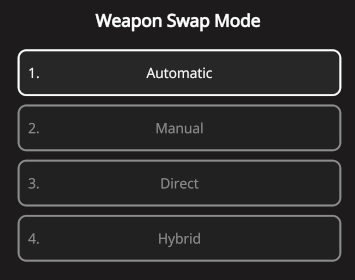
See the links below to learn about each option, then after making your selection, tap the
|
| ------------------------------------------------------------------------------------------------------------------------------------------------------------------------------------------------------------------------------------------------------------------------------------ | -------------------------------------------------------------------------------------------------------------------------------------------------------------------------------------------------------------------------------------------------------------------- |
See the links below to learn about each option, then after making your selection, tap the  back-arrow at the top-left to return to the Dashboard & observe the Weapon Slot layout.