> For the complete documentation index, see [llms.txt](https://guide.strikepack.com/llms.txt). Markdown versions of documentation pages are available by appending `.md` to page URLs; this page is available as [Markdown](https://guide.strikepack.com/horizon/strikepack-horizon-app-guide/ps5-setup-guide.md).

# PS5® Quick Setup Guide

Set up for PS5® Strikepack for use with your PlayStation®5.

<div align="left"><figure><img src="https://1841283601-files.gitbook.io/~/files/v0/b/gitbook-x-prod.appspot.com/o/spaces%2FFYraHizgjOptWmwCAGKE%2Fuploads%2FXWn6ajhSzakztax6DQrG%2FPS_Triangle.svg?alt=media&amp;token=40644099-daac-4af8-9b2e-ef7b8b18fca6" alt="" width="38"><figcaption></figcaption></figure> <figure><img src="https://1841283601-files.gitbook.io/~/files/v0/b/gitbook-x-prod.appspot.com/o/spaces%2FFYraHizgjOptWmwCAGKE%2Fuploads%2FLBpPQT5PvIQ1UWuQcyoq%2FPS_Circle.svg?alt=media&amp;token=97c23db5-7ef1-4db5-b89d-0d7bd3c4fec9" alt="" width="38"><figcaption></figcaption></figure> <figure><img src="https://1841283601-files.gitbook.io/~/files/v0/b/gitbook-x-prod.appspot.com/o/spaces%2FFYraHizgjOptWmwCAGKE%2Fuploads%2FEGN2XLpUO42he5WhxTrg%2FPS_Cross.svg?alt=media&amp;token=079dab43-bf48-42a6-ac56-4fe266dfe25c" alt="" width="38"><figcaption></figcaption></figure> <figure><img src="https://1841283601-files.gitbook.io/~/files/v0/b/gitbook-x-prod.appspot.com/o/spaces%2FFYraHizgjOptWmwCAGKE%2Fuploads%2FtaJ0mEW2g9iZZNuICa0x%2FPS_Square.svg?alt=media&amp;token=65ece527-062e-4186-976b-c6256f06d770" alt="" width="38"><figcaption></figcaption></figure></div>

<figure><img src="https://1841283601-files.gitbook.io/~/files/v0/b/gitbook-x-prod.appspot.com/o/spaces%2FFYraHizgjOptWmwCAGKE%2Fuploads%2FTfmAGiSjZda1qLX7RCfA%2Fline_horizon_flipped.png?alt=media&amp;token=89672410-9e30-495d-9551-51526f156405" alt=""><figcaption></figcaption></figure>

<h2 id="ps5-strike-pack-setup" align="center"><strong>STRIKEPACK HORIZON™ -</strong> <strong>PS5® Quick Setup Guide</strong></h2>

<p align="center"><mark style="color:$info;"><strong>Gaming Adapter for DualSense® on PlayStation®5 + PC</strong></mark></p>

<figure><img src="https://1841283601-files.gitbook.io/~/files/v0/b/gitbook-x-prod.appspot.com/o/spaces%2FFYraHizgjOptWmwCAGKE%2Fuploads%2F5Jx5Tu6u1wor8lUxYxMw%2Fline_horizon.png?alt=media&amp;token=7db97041-9d92-468c-9c18-a0fcbb400984" alt=""><figcaption></figcaption></figure>

<div align="center"><figure><img src="https://1841283601-files.gitbook.io/~/files/v0/b/gitbook-x-prod.appspot.com/o/spaces%2FFYraHizgjOptWmwCAGKE%2Fuploads%2FtZBOaNLzA7pwwCw9TvVL%2Fsp_horizon_be_ps_showcase.webp?alt=media&amp;token=678569af-9499-42a7-a89a-0802e1e63f25" alt="" width="431"><figcaption></figcaption></figure> <figure><img src="https://1841283601-files.gitbook.io/~/files/v0/b/gitbook-x-prod.appspot.com/o/spaces%2FFYraHizgjOptWmwCAGKE%2Fuploads%2FAp1pkf4LmsQBCjoXHeE0%2FPS5_PS5_Pro.png?alt=media&amp;token=01d6f6be-ef80-4b7e-8594-f25a465a4c73" alt=""><figcaption></figcaption></figure></div>

*Unlike the STRIKEPACK HORIZON for Xbox® where you can pretty much update, attach, and play,* there are just a few extra steps to get the STRIKEPACK HORIZON for the standard DualSense® controller working on your PlayStation®5 console. Not a big deal if you follow the instructions below:

## Before You Get Started

* **Update** the **STRIKEPACK HORIZON firmware** before first use.
* You must use a **Standard DualSense** controller.
  * :no\_entry: *DualSense Edge® is incompatible.*
* You will need the following:
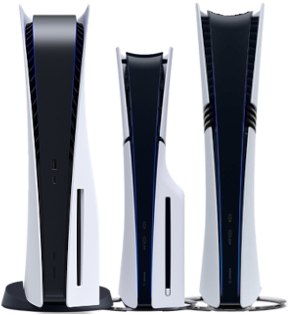
  * **PS5** or **PS5 Pro** console.
  * **Standard DualSense** controller must be charged, updated, and paired to your PS5.
  * **STRIKEPACK HORIZON** for **PS5**.
  * **Non-iOS** device to update the firmware, such as **PC**, **Mac®**, **Chromebook™**, or **Android®**.
  * Compatible browser that allows wired updating, such as **Chrome™**, **Edge™**, or **Firefox®**.
    * :no\_entry: *Restrictive browsers like Safari™ are incompatible.*
  * USB-A data cable if your updater device *does not* have a USB-C port.
  * **iOS® 15** or **Android® 9** or higher version device with **Bluetooth®**, **Location Services**, and **Internet Access** **ON**.
  * **STRIKEPACK HORIZON** app must be installed.

<figure><img src="https://1841283601-files.gitbook.io/~/files/v0/b/gitbook-x-prod.appspot.com/o/spaces%2FFYraHizgjOptWmwCAGKE%2Fuploads%2F5Jx5Tu6u1wor8lUxYxMw%2Fline_horizon.png?alt=media&amp;token=7db97041-9d92-468c-9c18-a0fcbb400984" alt=""><figcaption></figcaption></figure>

### Step 1 — Update Firmware

Video Help: [**https://youtu.be/\_DtmfThqJME?si=hO-ioS3jRyNqaapS**](https://youtu.be/_DtmfThqJME?si=hO-ioS3jRyNqaapS)

1. *Do not* attach the STRIKEPACK HORIZON to your controller yet.
2. Instead, connect the STRIKEPACK HORIZON to a computing device using its included cable, or a reliable USB data cable.
3. Open the Google Chrome™ browser and visit [**firmware.collectivemindsstore.com**](http://firmware.collectivemindsstore.com/)
4. Follow the on-screen instructions and install the latest firmware version.

NOTE: If you have attached to your controller already, <img src="https://1841283601-files.gitbook.io/~/files/v0/b/gitbook-x-prod.appspot.com/o/spaces%2FFYraHizgjOptWmwCAGKE%2Fuploads%2FxT7FIHbTERFS4pADe5WD%2FHold_Icon.svg?alt=media&amp;token=c91a88e9-b17c-4fde-82e8-57e6317ee14c" alt="" data-size="line"> <mark style="color:$danger;">**holding**</mark>**&#x20;Action Buttons 1 and 3 together** while connecting will enter Update Mode (rainbow LEDS).

<figure><img src="https://1841283601-files.gitbook.io/~/files/v0/b/gitbook-x-prod.appspot.com/o/spaces%2FFYraHizgjOptWmwCAGKE%2Fuploads%2F5Jx5Tu6u1wor8lUxYxMw%2Fline_horizon.png?alt=media&amp;token=7db97041-9d92-468c-9c18-a0fcbb400984" alt=""><figcaption></figcaption></figure>

### Step 2 — Configure PS5 Settings

On your PS5 console:

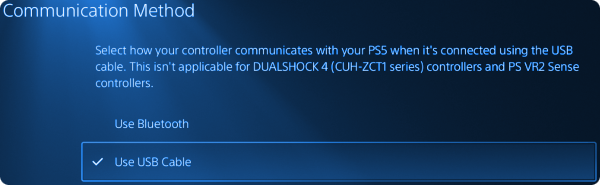
1. Go to:\
   **Settings → Accessories → Controller (General)**
2. Set:

   **Communication Method → Use USB Cable**

<div align="left"><figure><img src="https://1841283601-files.gitbook.io/~/files/v0/b/gitbook-x-prod.appspot.com/o/spaces%2FFYraHizgjOptWmwCAGKE%2Fuploads%2FyPQ8I5U6rDDKfyNjk0GN%2FPS5_Use_Cable_Selection.png?alt=media&amp;token=a610fb93-37be-4fb5-ba6b-e858f6944d4c" alt=""><figcaption></figcaption></figure></div>

<figure><img src="https://1841283601-files.gitbook.io/~/files/v0/b/gitbook-x-prod.appspot.com/o/spaces%2FFYraHizgjOptWmwCAGKE%2Fuploads%2F5Jx5Tu6u1wor8lUxYxMw%2Fline_horizon.png?alt=media&amp;token=7db97041-9d92-468c-9c18-a0fcbb400984" alt=""><figcaption></figcaption></figure>

### Step 3 — Attach the STRIKEPACK HORIZON

1. <img src="https://1841283601-files.gitbook.io/~/files/v0/b/gitbook-x-prod.appspot.com/o/spaces%2FFYraHizgjOptWmwCAGKE%2Fuploads%2FxT7FIHbTERFS4pADe5WD%2FHold_Icon.svg?alt=media&amp;token=c91a88e9-b17c-4fde-82e8-57e6317ee14c" alt="" data-size="line"> <mark style="color:$danger;">**Hold**</mark> the <img src="https://1841283601-files.gitbook.io/~/files/v0/b/gitbook-x-prod.appspot.com/o/spaces%2FFYraHizgjOptWmwCAGKE%2Fuploads%2FiG1JBf21gT87xJQmQrdd%2FPS_Button.svg?alt=media&amp;token=1a3f2dad-8f62-4eb7-a386-e3d4dced5951" alt="" data-size="line"> **PlayStation®** button to power OFF your controller.
2. Align the STRIKEPACK HORIZON adapter's USB-C connector with your controller's port.
3. Press the top of the adapter firmly into place, so that it sits flush against your controller. There should be *no gap* between the front-top of the adapter and your controller.
4. Secure the front hinge clip, pressing it into your controller's speaker grille holes.

{% hint style="danger" %} <mark style="color:$danger;">**WARNING:**</mark> Damage from improperly attaching/detaching the adapter is ***not*** covered under warranty.
{% endhint %}

Need extra help with attaching? Watch the following two videos:

[**https://youtu.be/1OkoPF0BWro?si=6X\_tV3IKSyprMCvJ**](https://youtu.be/1OkoPF0BWro?si=6X_tV3IKSyprMCvJ)

[h**ttps://youtu.be/Vc7\_0FrM6V0?si=tNWBG8Bcx46b5V6U**](https://youtu.be/Vc7_0FrM6V0?si=tNWBG8Bcx46b5V6U)

<figure><img src="https://1841283601-files.gitbook.io/~/files/v0/b/gitbook-x-prod.appspot.com/o/spaces%2FFYraHizgjOptWmwCAGKE%2Fuploads%2F5Jx5Tu6u1wor8lUxYxMw%2Fline_horizon.png?alt=media&amp;token=7db97041-9d92-468c-9c18-a0fcbb400984" alt=""><figcaption></figcaption></figure>

### Step 4 — Connect to PS5

1. Plug your STRIKEPACK HORIZON-enabled controller into your PS5 using the included USB-C cable.
2. The adapter's LEDs will gently pulse <mark style="color:$danger;">**red**</mark> during PS5 setup.

   * NOTE: If the LEDs are static <mark style="color:$warning;">**orange**</mark> instead, temporarily detach the adapter, charge your controller for a while, check the "**Use USB Cable**" setting, and then try again.

   <div align="left"><figure><img src="https://1841283601-files.gitbook.io/~/files/v0/b/gitbook-x-prod.appspot.com/o/spaces%2FFYraHizgjOptWmwCAGKE%2Fuploads%2F34c58X8Ie652hoNNVE5d%2Fsp_horizon_be_ps_awaiting_setup_controller.webp?alt=media&amp;token=05371d72-73ec-4e57-8930-042ed5ecf1a6" alt="" width="263"><figcaption></figcaption></figure></div>
3. Open the STRIKEPACK HORIZON app on your iOS or Android smartphone or tablet. <mark style="color:$danger;">**NOTE:**</mark> STRIKEPACK HORIZON app has replaced STRIKEPACK CENTRAL app as of September 2026.
4. Allow all permissions and connect to the detected device.
5. Please wait for setup to complete; when it does the adapter's LEDS will turn **white**.
6. Your STRIKEPACK HORIZON-enabled controller is now paired with the app and your PS5 console. **Next time, you can just plug in and play!**

<div align="left"><figure><img src="https://1841283601-files.gitbook.io/~/files/v0/b/gitbook-x-prod.appspot.com/o/spaces%2FFYraHizgjOptWmwCAGKE%2Fuploads%2FljjIOFi6D0vO3odP5PuY%2Fsp_horizon_be_ps_setup_complete_controller.webp?alt=media&amp;token=12b9bad5-5939-4c61-8e35-9b6f289eb7bb" alt="" width="263"><figcaption><p><strong>Happy Gaming</strong>!</p></figcaption></figure></div>

Still struggling? Watch the video here:

[**https://youtube.com/shorts/lpm972\_ytgs?si=EcAxacUo\_fkfmMnm**](https://youtube.com/shorts/lpm972_ytgs?si=EcAxacUo_fkfmMnm)

{% hint style="danger" %}
If your controller is unresponsive after setup is complete, this is just a one-time timeout issue. Simply <img src="https://1841283601-files.gitbook.io/~/files/v0/b/gitbook-x-prod.appspot.com/o/spaces%2FFYraHizgjOptWmwCAGKE%2Fuploads%2FxT7FIHbTERFS4pADe5WD%2FHold_Icon.svg?alt=media&amp;token=c91a88e9-b17c-4fde-82e8-57e6317ee14c" alt="" data-size="line"> <mark style="color:$danger;">**hold**</mark> the unlabeled **Restart** button (right-hand side) for roughly a second, then release it. Otherwise, you can unplug/replug the cable.
{% endhint %}

<figure><img src="https://1841283601-files.gitbook.io/~/files/v0/b/gitbook-x-prod.appspot.com/o/spaces%2FFYraHizgjOptWmwCAGKE%2Fuploads%2F5Jx5Tu6u1wor8lUxYxMw%2Fline_horizon.png?alt=media&amp;token=7db97041-9d92-468c-9c18-a0fcbb400984" alt=""><figcaption></figcaption></figure>

### Step 5 — Mapping Mode

**STRIKEPACK HORIZON**, unlike previous STRIKEPACK products, *does not* share a single mapping configuration across modes. It is designed this way to reduce or eliminate the need to change your mapping when switching back and forth between your favorite games.

**TOURNAMENT (White Gearhead Eyes or&#x20;**<mark style="color:$danger;">**Red if Disconnected from App**</mark>**)** is the default state of the adapter, and it has its own separate mapping that the app *does not touch*, configurable solely through <mark style="color:violet;">**Mapping Mode**</mark> on your controller.

<mark style="color:blue;">**GAMEPACKS (Blue Gearhead Eyes)**</mark> and **TOURNAMENT STUDIO (Pulsing White Gearhead Eyes)** have separate mapping for each Profile created in the app. Upon entering a Profile, mapping is configurable through **Mapping** on the app, or <mark style="color:violet;">**Mapping Mode**</mark> on your controller.

<div align="left"><figure><img src="https://1841283601-files.gitbook.io/~/files/v0/b/gitbook-x-prod.appspot.com/o/spaces%2FFYraHizgjOptWmwCAGKE%2Fuploads%2FTOgiOpzciJ76sQktoji3%2Fsp_horizon_be_ps_mapping_mode_q75.webp?alt=media&amp;token=1a1c6e06-cbd5-45ca-975d-9fd23d58a842" alt="" width="368"><figcaption></figcaption></figure></div>

| <h3><mark style="color:violet;">Enter Mapping Mode</mark></h3><p><img src="https://1841283601-files.gitbook.io/~/files/v0/b/gitbook-x-prod.appspot.com/o/spaces%2FFYraHizgjOptWmwCAGKE%2Fuploads%2FxT7FIHbTERFS4pADe5WD%2FHold_Icon.svg?alt=media&amp;token=c91a88e9-b17c-4fde-82e8-57e6317ee14c" alt="" data-size="line"> <mark style="color:$danger;"><strong>Hold</strong></mark> the left-hand side unlabeled button for 300+ milliseconds to enter <mark style="color:violet;"><strong>Mapping Mode</strong></mark>. The LEDs will turn <mark style="color:violet;"><strong>purple</strong></mark>.</p><p><img src="https://1841283601-files.gitbook.io/~/files/v0/b/gitbook-x-prod.appspot.com/o/spaces%2FFYraHizgjOptWmwCAGKE%2Fuploads%2FRJuDZqEnzREANPVR7GlP%2Fsp_horizon_be_ps_enter_mapping_mode.webp?alt=media&amp;token=e39354bc-7fec-41b2-9b88-392a59c57358" alt="" data-size="original"></p>                                                                                                                                                                                                                                                                                                                                                                                                                                                                                                                                                                                                                                                                                                                                                                                                                                                                                                                                                                                                                                                                                                                                                                                                                                                                                              |
| -------------------------------------------------------------------------------------------------------------------------------------------------------------------------------------------------------------------------------------------------------------------------------------------------------------------------------------------------------------------------------------------------------------------------------------------------------------------------------------------------------------------------------------------------------------------------------------------------------------------------------------------------------------------------------------------------------------------------------------------------------------------------------------------------------------------------------------------------------------------------------------------------------------------------------------------------------------------------------------------------------------------------------------------------------------------------------------------------------------------------------------------------------------------------------------------------------------------------------------------------------------------------------------------------------------------------------------------------------------------------------------------------------------------------------------------------------------------------------------------------------------------------------------------------------------------------------------------------------------------------------------------------------------------------------------------------------------------------------------------------------------------------------------------------------------------------------------------------------------------------------------------------------------------------------------------------------------------------------------------------------------------------------------------------------------------------------------------------------------------------------------------------------------------------------------------------------- |
| <h3><mark style="color:$success;">Mapping a Controller Button</mark></h3><p><img src="https://1841283601-files.gitbook.io/~/files/v0/b/gitbook-x-prod.appspot.com/o/spaces%2FFYraHizgjOptWmwCAGKE%2Fuploads%2FxT7FIHbTERFS4pADe5WD%2FHold_Icon.svg?alt=media&amp;token=c91a88e9-b17c-4fde-82e8-57e6317ee14c" alt="" data-size="line"> <mark style="color:$danger;"><strong>Hold</strong></mark><strong> only</strong> the controller button/s that you want mapped. <em>Do not touch the sticks or anything you do not want included in the mapping.</em></p><ul><li>Up to 4 controller buttons can <img src="https://1841283601-files.gitbook.io/~/files/v0/b/gitbook-x-prod.appspot.com/o/spaces%2FFYraHizgjOptWmwCAGKE%2Fuploads%2FxT7FIHbTERFS4pADe5WD%2FHold_Icon.svg?alt=media&amp;token=c91a88e9-b17c-4fde-82e8-57e6317ee14c" alt="" data-size="line"> <mark style="color:$danger;"><strong>held</strong></mark> together to be mapped to a single Paddle Button.</li><li>Stick movement can be mapped as the nearest basic direction (1 of 8 directions at 100%).</li><li>While <img src="https://1841283601-files.gitbook.io/~/files/v0/b/gitbook-x-prod.appspot.com/o/spaces%2FFYraHizgjOptWmwCAGKE%2Fuploads%2FxT7FIHbTERFS4pADe5WD%2FHold_Icon.svg?alt=media&amp;token=c91a88e9-b17c-4fde-82e8-57e6317ee14c" alt="" data-size="line"> <mark style="color:$danger;"><strong>holding</strong></mark> the desired controller button/s, <img src="https://1841283601-files.gitbook.io/~/files/v0/b/gitbook-x-prod.appspot.com/o/spaces%2FFYraHizgjOptWmwCAGKE%2Fuploads%2FsUgzRD8aE22qsSxZ4cmI%2FTap_Icon.svg?alt=media&amp;token=70edd8e3-3389-4437-ae55-60bc2b67ec86" alt="" data-size="line"> <strong>tap</strong> the Paddle Button that you want to assign the mapping to. The LEDs will flash <mark style="color:$success;"><strong>green</strong></mark> to confirm the change.</li></ul><p><img src="https://1841283601-files.gitbook.io/~/files/v0/b/gitbook-x-prod.appspot.com/o/spaces%2FFYraHizgjOptWmwCAGKE%2Fuploads%2FSU5HYB1d8eB83cZfWHAx%2Fsp_horizon_be_ps_mapped_mapping_mode.webp?alt=media&amp;token=b770b4d1-23e3-4657-a3ad-728603eb8d34" alt="" data-size="original"></p> |
| <h3><mark style="color:$danger;">Clearing a Paddle Button</mark></h3><p>To clear or remove the mapping from an Action Button, just <img src="https://1841283601-files.gitbook.io/~/files/v0/b/gitbook-x-prod.appspot.com/o/spaces%2FFYraHizgjOptWmwCAGKE%2Fuploads%2FsUgzRD8aE22qsSxZ4cmI%2FTap_Icon.svg?alt=media&amp;token=70edd8e3-3389-4437-ae55-60bc2b67ec86" alt="" data-size="line"> <strong>tap</strong> the Action Button by itself. The LEDs will flash <mark style="color:$danger;"><strong>red</strong></mark> to confirm the change.</p><p><img src="https://1841283601-files.gitbook.io/~/files/v0/b/gitbook-x-prod.appspot.com/o/spaces%2FFYraHizgjOptWmwCAGKE%2Fuploads%2FrWRuFXljv154N0wVWKLK%2Fsp_horizon_be_ps_cleared_mapping_mode.webp?alt=media&amp;token=72e2f448-8be6-4bd7-aec4-eaab6d40d9cb" alt="" data-size="original"></p>                                                                                                                                                                                                                                                                                                                                                                                                                                                                                                                                                                                                                                                                                                                                                                                                                                                                                                                                                                                                                                                                                                                                                                                                                                                                                                                                                   |
| <h3>Exit Mapping Mode</h3><p>You can save and exit Mapping Mode by <img src="https://1841283601-files.gitbook.io/~/files/v0/b/gitbook-x-prod.appspot.com/o/spaces%2FFYraHizgjOptWmwCAGKE%2Fuploads%2FsUgzRD8aE22qsSxZ4cmI%2FTap_Icon.svg?alt=media&amp;token=70edd8e3-3389-4437-ae55-60bc2b67ec86" alt="" data-size="line"> <strong>tap</strong> either unlabeled button.</p><p><img src="https://1841283601-files.gitbook.io/~/files/v0/b/gitbook-x-prod.appspot.com/o/spaces%2FFYraHizgjOptWmwCAGKE%2Fuploads%2FRGyzKcixRNWqAoiRdf2k%2Fsp_horizon_be_ps_exit_mapping_mode.webp?alt=media&amp;token=c93325aa-b999-4299-b77c-cf8752f8c0c2" alt="" data-size="original"></p>                                                                                                                                                                                                                                                                                                                                                                                                                                                                                                                                                                                                                                                                                                                                                                                                                                                                                                                                                                                                                                                                                                                                                                                                                                                                                                                                                                                                                                                                                                                              |

<figure><img src="https://1841283601-files.gitbook.io/~/files/v0/b/gitbook-x-prod.appspot.com/o/spaces%2FFYraHizgjOptWmwCAGKE%2Fuploads%2F5Jx5Tu6u1wor8lUxYxMw%2Fline_horizon.png?alt=media&amp;token=7db97041-9d92-468c-9c18-a0fcbb400984" alt=""><figcaption></figcaption></figure>

## Adapter LED Indicators

* <mark style="color:$danger;">**All Red Pulse**</mark> — Waiting for Initial PS5 and App Setup
* **All White** — PS5 Ready / **Tournament Mode Default**
* <mark style="color:$warning;">**All Orange**</mark> —
  * On PS5 = Troubleshoot No USB Data Connection
  * <mark style="color:$warning;">**PC Gaming Mode Ready**</mark>
* **White Eyes Pulse** — **Tournament Studio**
* <mark style="color:blue;">**Blue Eyes**</mark> — <mark style="color:blue;">**GAMEPACK**</mark> <mark style="color:blue;">**Macros Available**</mark>
* <mark style="color:$danger;">**Red Eyes**</mark> — Not Connected to STRIKEPACK HORIZON App
* Slot Indicators — Shooter Studio

<figure><img src="https://1841283601-files.gitbook.io/~/files/v0/b/gitbook-x-prod.appspot.com/o/spaces%2FFYraHizgjOptWmwCAGKE%2Fuploads%2F5Jx5Tu6u1wor8lUxYxMw%2Fline_horizon.png?alt=media&amp;token=7db97041-9d92-468c-9c18-a0fcbb400984" alt=""><figcaption></figcaption></figure>

## <i class="fa-burst-new">:burst-new:</i> Shooter Studio

**Shooter Studio** is the latest and most configurable in-app pack our team has ever made. It can be adapted to almost any shooter-type game and you are encouraged to create a separate profile for each game you play.

This pack empowers you to create, name, categorize, and configure your own Optimized Weapon settings using its Weapon & Recoil Editor.

* On a per weapon basis, you can adjust Fire Mode settings, fine-tune Recoil Assist bullet-by-bullet, and apply additional Accessibility Macros.
* You can assign to each of the Slots, and you can configure the Loadout Slot Layout to work with how your game switches to weapons and equipment.

This pack is designed from the ground up for exporting and importing, so you can share your own efforts, or enjoy and edit the efforts of others.

<figure><img src="https://1841283601-files.gitbook.io/~/files/v0/b/gitbook-x-prod.appspot.com/o/spaces%2FFYraHizgjOptWmwCAGKE%2Fuploads%2F5Jx5Tu6u1wor8lUxYxMw%2Fline_horizon.png?alt=media&amp;token=7db97041-9d92-468c-9c18-a0fcbb400984" alt=""><figcaption></figcaption></figure>

## Important Connection Notes

* The STRIKEPACK HORIZON requires a continuous wired connection to the PS5 to use in general, and a continuous Bluetooth connection to the STRIKEPACK HORIZON app to use macros.
* Use the included USB-C cable or high-quality USB data cables only.
* Avoid USB hubs or extension cables as they can lower the cable signal quality and cause disconnects.
* Your controller *will not* charge when the STRIKEPACK HORIZON is attached (it should maintain an existing charge though).
* Never connect the STRIKEPACK HORIZON to a wall charger as this can potentially cause damage that will void your warranty.

<figure><img src="https://1841283601-files.gitbook.io/~/files/v0/b/gitbook-x-prod.appspot.com/o/spaces%2FFYraHizgjOptWmwCAGKE%2Fuploads%2F5Jx5Tu6u1wor8lUxYxMw%2Fline_horizon.png?alt=media&amp;token=7db97041-9d92-468c-9c18-a0fcbb400984" alt=""><figcaption></figcaption></figure>

## Unofficial Product

The STRIKEPACK HORIZON™ product shown on this webpage is an unofficial accessory designed for use with the standard DualSense® controller on Sony® PlayStation®5 console systems and PC. It is not licensed, sponsored, or endorsed by Sony® or the PlayStation® brand.


---

# Agent Instructions
This documentation is published with GitBook. GitBook is the documentation platform designed so that both humans and AI agents can read, navigate, and reason over technical content effectively. Learn more at gitbook.com.

## Querying This Documentation
If you need additional information that is not directly available in this page, you can query the documentation dynamically by asking a question.

Perform an HTTP GET request on the current page URL with the `ask` query parameter, and the optional `goal` query parameter:

```
GET https://guide.strikepack.com/horizon/strikepack-horizon-app-guide/ps5-setup-guide.md?ask=<question>&goal=<endgoal>
```

`ask` is the immediate question: it should be specific, self-contained, and written in natural language.
`goal` is optional and describes the broader end goal you are ultimately trying to accomplish on behalf of the user. GitBook uses it to tailor the answer towards what is most useful for that goal.

The response will contain a direct answer to the question and relevant excerpts and sources from the documentation.

Use this mechanism when the answer is not explicitly present in the current page, you need clarification or additional context, or you want to retrieve related documentation sections.